TABLE OF CONTENTS
- What is the VoIP Deskphone integration?
- Who can set it up?
- Requirements & recommended deskphones
- Step-by-step setup
- Managing deskphones
- FAQs
- Troubleshooting
What is the VoIP Deskphone integration?
The VoIP Deskphone feature lets you register any SIP-compatible hard-phone (deskphone) to your NeuroDesk (ND) sub-account. All calls placed or received on the handset flow through ND, so you keep call tracking, recordings and automations in one place.
Who can set it up?
Admins – provisioning inside their own location
Other users – read-only view; see a tooltip that says “Ask an admin to configure this.”
Requirements & recommended deskphones
Network & protocol
SIP over UDP, TCP or TLS
Outbound ports 5060/5061 open for SIP
UDP 10000-20000 open for RTP audio
PoE or external power
When buying new hardware
Look for the terms “SIP”, “PoE” and at least two programmable line keys
Avoid phones locked to a single carrier or that require proprietary provisioning codes
Popular models
Yealink T54W / T58W
Poly VVX 450
Grandstream GXP 2170
Snom D785
Cisco 7841
(Any open-SIP handset should work, these are just proven examples.)
Step-by-step setup
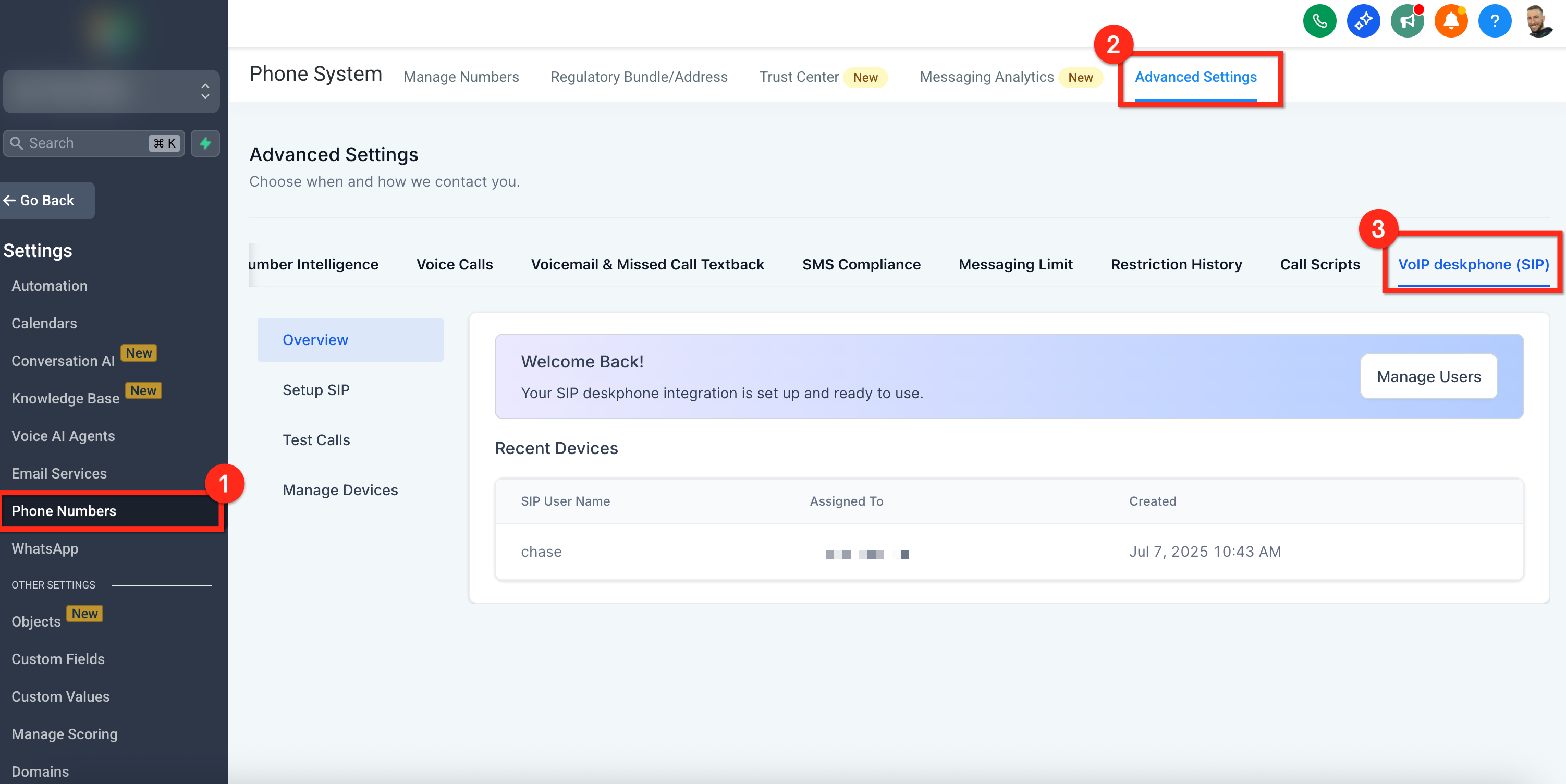
Go to Settings → Phone System → Advances Settings → VoIP Deskphone (SIP) → Get Started.
Confirm or edit your SIP Domain.
A default suggestion appears as <LocationName>.sip.ashburn.twilio.com.
You can change it once before saving.
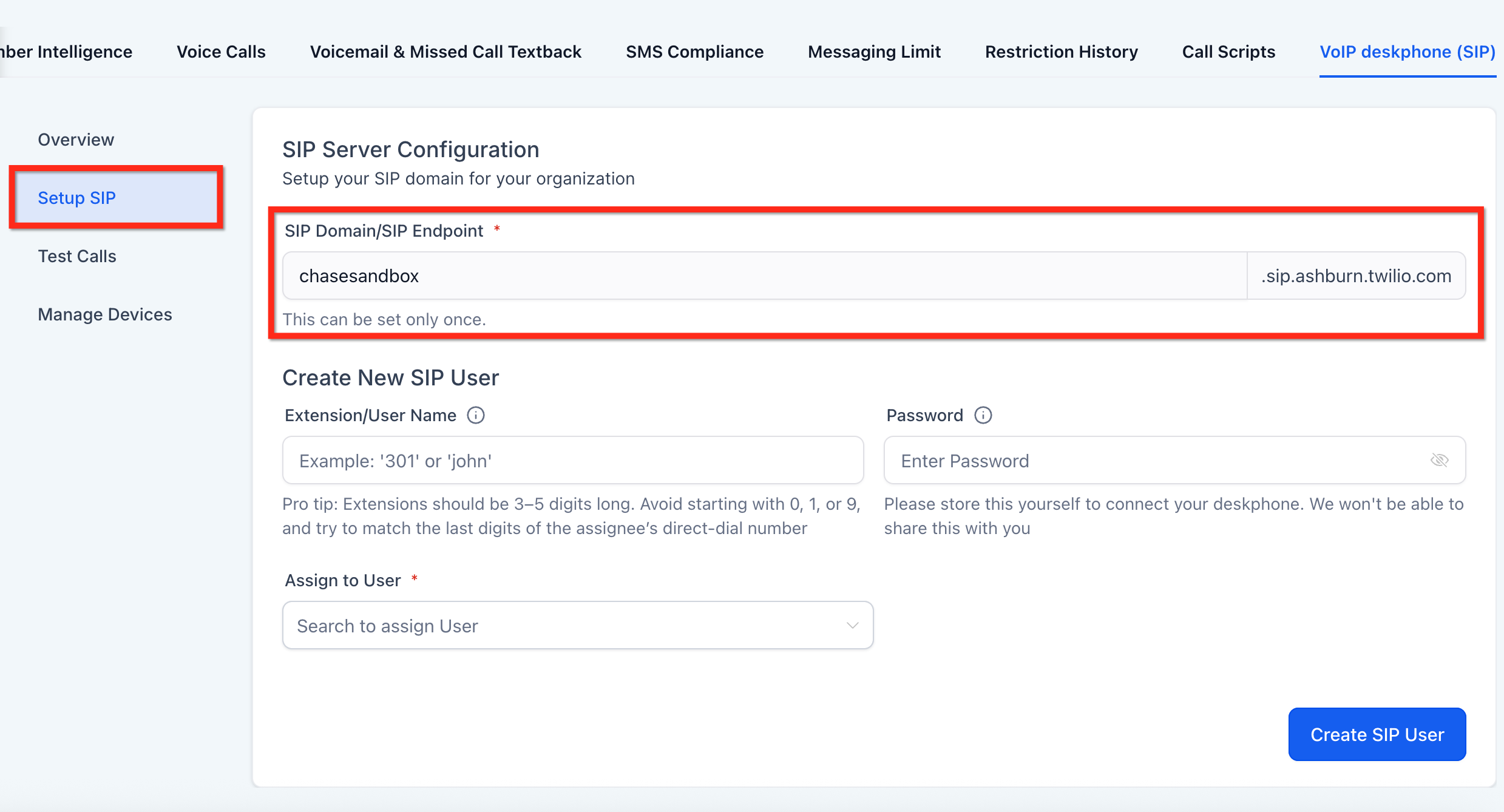
Setup an Extension or a Username (number or text) and a password. Keep these handy, you'll need it when setting up your phone.
Link a ND user (one deskphone per ND user). If needed, create the user first.
Click Save.
On your deskphone, paste those three values into the matching fields (often named Registrar, Server or Proxy, plus Username and Password). In case of issues with setup on the deskphone, Hard Reset of the hardware phone may help.
(Optional) Outbound Test Call – Dial the on-screen number; you’ll hear “This is a test call” three times if successful.
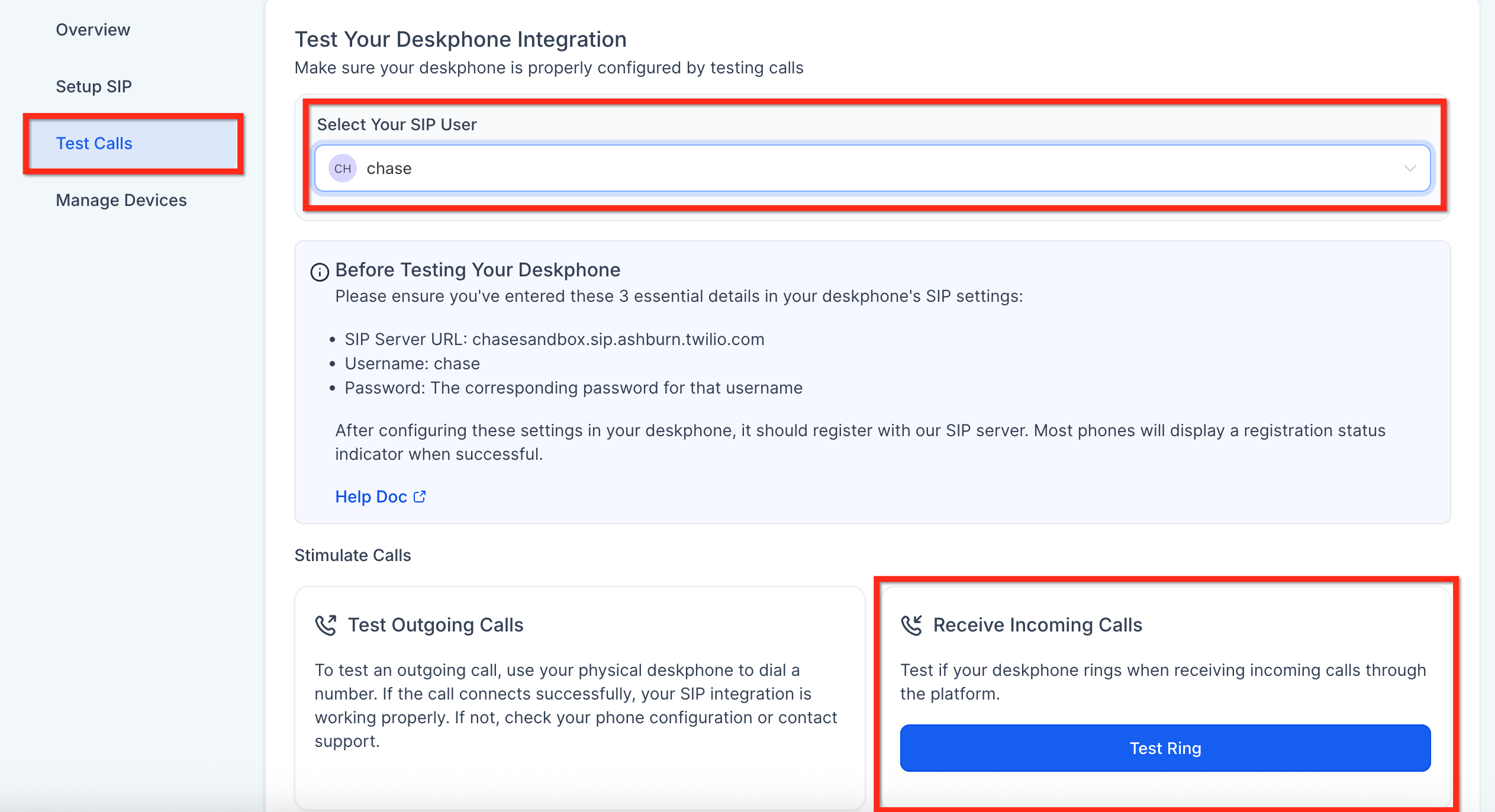
(Optional) Inbound Test Call – Click the button; your phone should ring. Answer and hang up to confirm audio.
If either test fails, click Details for error codes or choose Contact Support.
Managing Deskphones
Reset a password: Settings → Phone System → Advanced Settings → VoIP Deskphone → Manage Devices → Edit icon

Delete a deskphone: Same menu → Delete (immediately unregisters the handset)

Add another phone: Repeat the wizard (must be linked to a different ND user)
View call logs & recordings: Conversations → All Calls
When a linked ND user is deleted or transferred, the SIP credentials are automatically disabled. Outbound calls return “403 Forbidden”; inbound calls play an intercept message.
Deskphone to deskphone transfer
1. Direct Extension Dialing Between Deskphones
You can now call any teammate with a configured deskphone simply by dialing their extension.
What’s New?
If your teammate’s extension is 101, just dial 201 from your deskphone to connect instantly , no external numbers or additional routing required.
Key Details
Fast extension-to-extension calling
Works between configured deskphones
Supported on deskphones only
This update makes internal communication quicker and more efficient for teams using deskphones.
2. IVR Call Transfer Between Deskphones
You can now transfer IVR calls from one deskphone directly to another deskphone.
How it works?
During an active IVR call on your deskphone:
Initiate a transfer.
Dial your teammate’s extension.
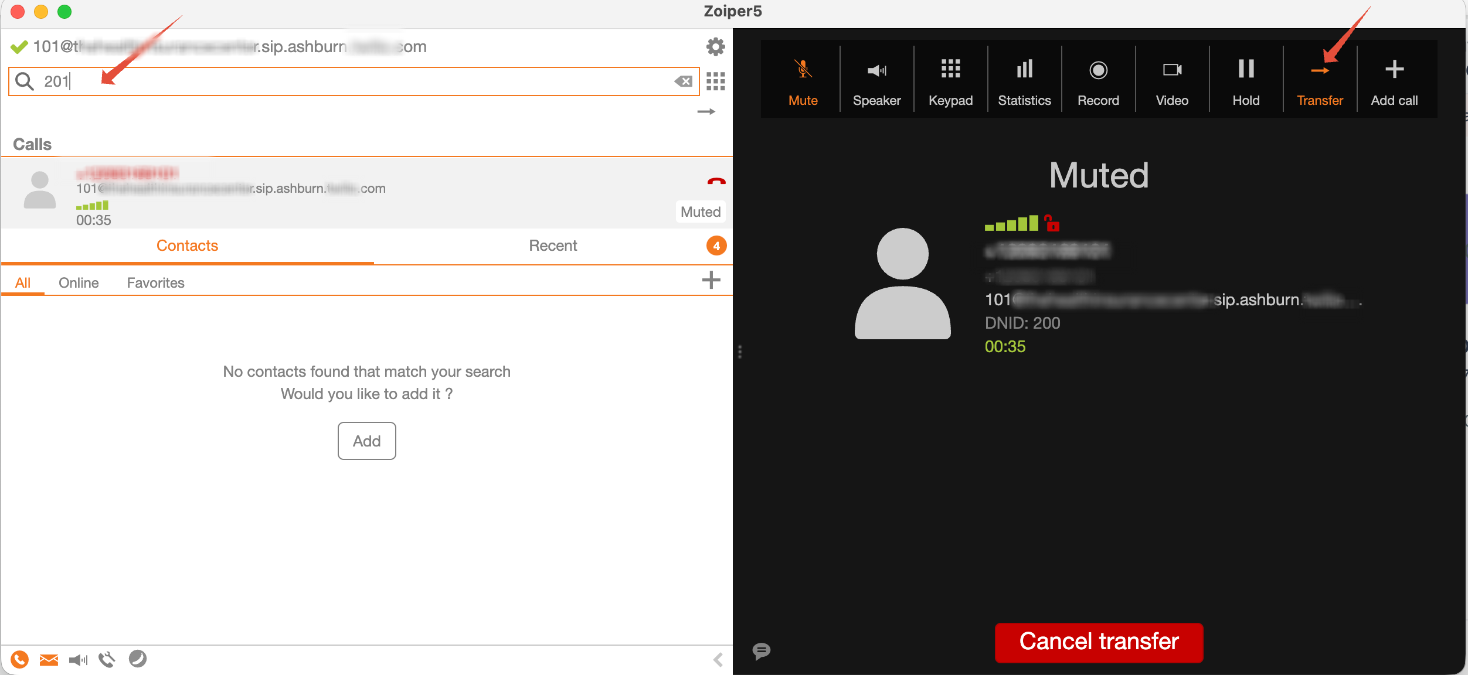
The call is routed directly to their deskphone.
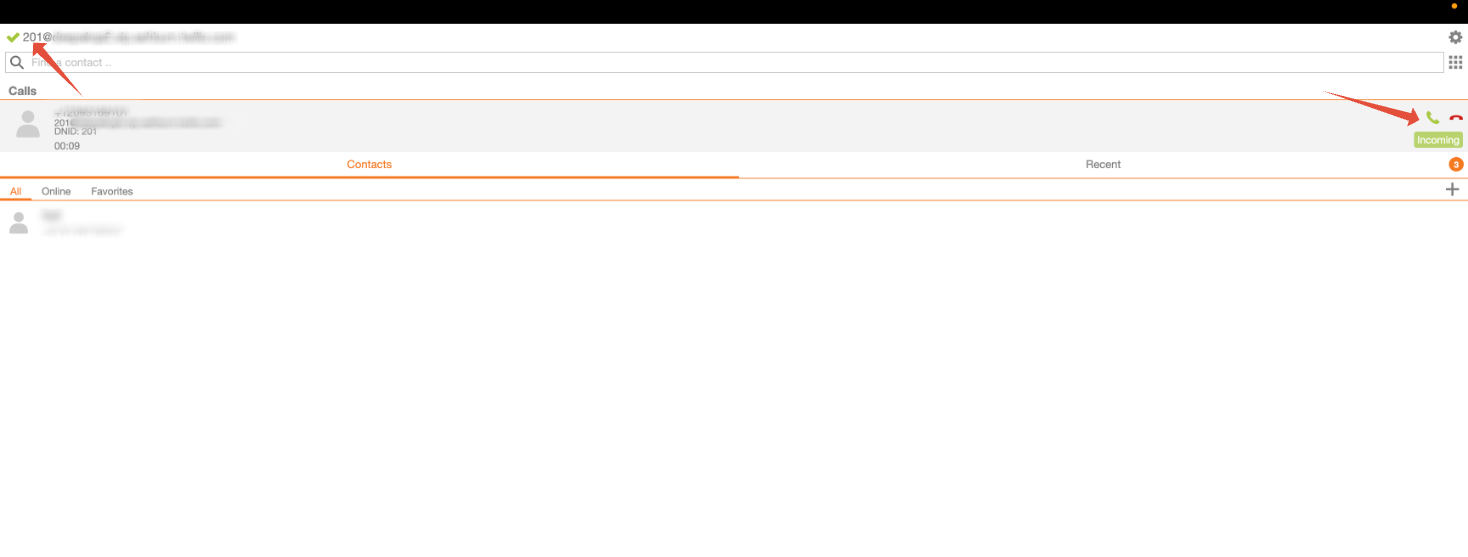
Simple and seamless.
Note: Only blind transfers are supported. Warm transfers are not currently available
FAQs
Can I have multiple SIP domains?
Not right now. Most businesses only need one.
Will my existing Yealink / Poly / Cisco phone work?
Yes, if it supports generic SIP registration. Factory-reset first, then follow the steps above.
What happened to “Ring All”?
The maximum members is now 6 (was 7). If you previously had 7, the 7th entry was removed automatically after enabling this feature.
Can two deskphones point at the same ND user?
No. Create an additional (hidden) user for each handset.
Is there an extra charge?
No. Calls made from a deskphone are billed the same as calls from the web or mobile app. Call Transfers from Deskphones do cost an extra $0.10 per transfer (SIP Refer)
Why am I not receiving calls on my Deskphone when I receive a call on my assigned phone number?
It may be because Deskphone device type is not enabled under your staff settings. Enable it under Settings > My Staff > Edit Staff > Call & Voicemail Settings
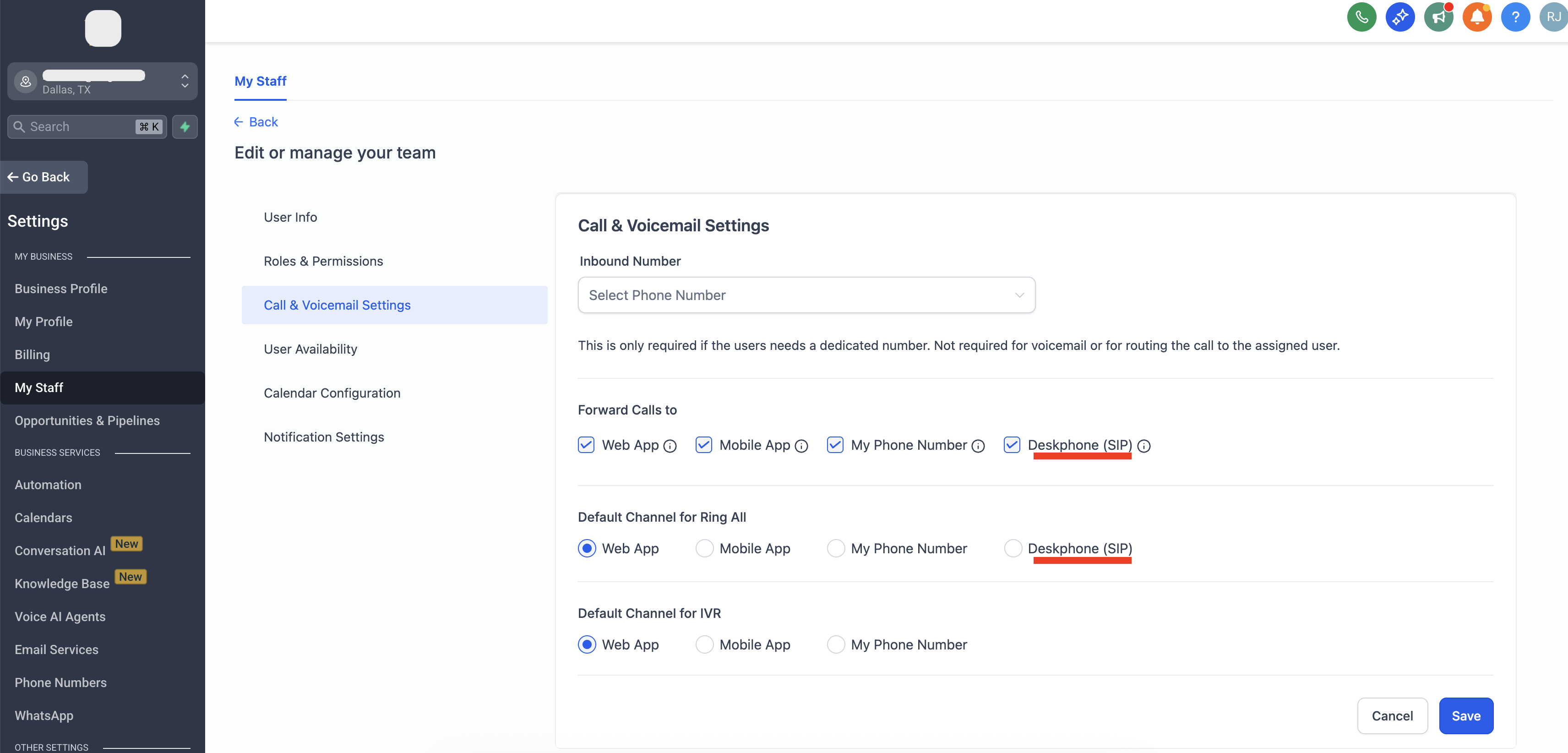
Why am I not receiving IVR calls on my Deskphone?
If the user sets Default channel for IVR = Deskphone, IVR-routed calls will ring the deskphone.
Troubleshooting
401/403 Unauthorized – verify username and password (case-sensitive).
No audio – make sure UDP 10000-20000 is open on your firewall.
Phone rings but can’t answer – check that RTP ports aren’t blocked by NAT or SIP ALG.
Can’t save SIP domain – the name is already taken; edit it or accept the suggested increment.
Still stuck? Click Contact Support with your SIP domain and handset model.