The SEO Pixel allows you to automatically apply AI-generated SEO fixes—such as title tags, meta descriptions, and image alt text—to websites that are hosted outside the platform. This makes it possible to improve search visibility without manually editing external site code for every optimization.
If your website is hosted inside the platform, SEO fixes can be applied directly without installing the SEO Pixel.
TABLE OF CONTENTS
- What Is SEO Pixel?
- Who Should Use SEO Pixel?
- How SEO Pixel Works
- Install the SEO Pixel
- Custom or Other Websites
- Verify Installation
- Apply SEO Fixes
- FAQ
- Key Notes
- Next Steps
- Need Help?
What Is SEO Pixel?
SEO Pixel is a small JavaScript snippet generated inside the SEO tool. When installed on an external website, it enables the system to apply AI-generated SEO updates directly to that site.
These updates may include:
Title tags
Meta descriptions
Image alt text
The pixel acts as a secure bridge between your external website and the SEO tool, allowing optimizations to be applied automatically.
Who Should Use SEO Pixel?
Use SEO Pixel if:
Your website is hosted externally (for example: WordPress, Wix, Shopify, or a custom-built site).
Your site is connected inside the SEO tool but displays “SEO Pixel not detected.”
You want AI-generated SEO updates applied automatically to an external site.
You do not need SEO Pixel if your website is hosted inside the platform.
How SEO Pixel Works
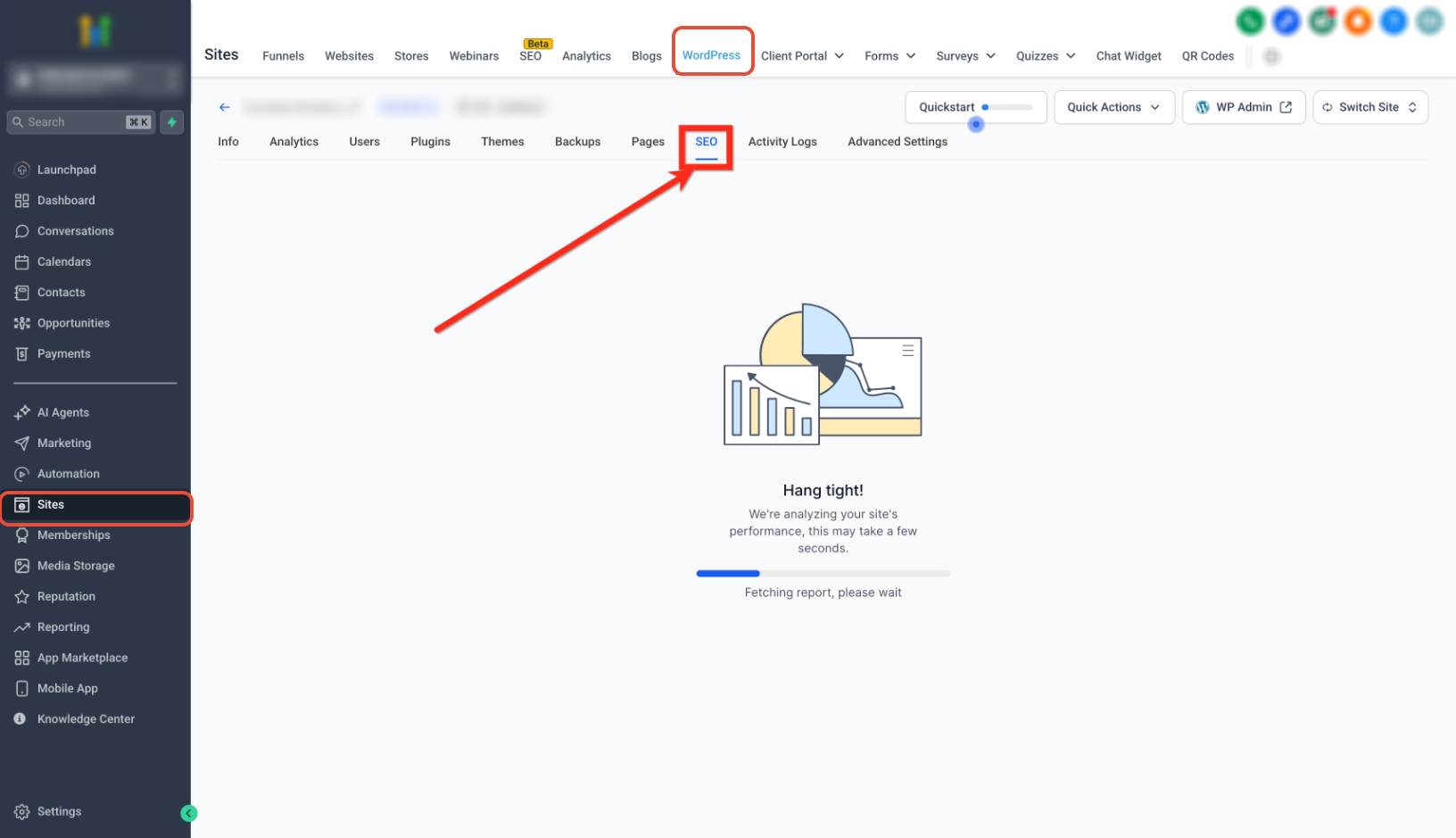
Open the SEO tool for your website.
If your website is external (or the pixel is missing), you will see SEO Pixel not detected.
Click View Installation Steps.
Copy the generated code snippet.
Paste the snippet into your website’s <body> section.
Return to the SEO tool and click Verify Installation.
Once verified, use Fix Issue to apply suggested SEO updates automatically.
Install the SEO Pixel
The pixel must be placed inside the <body> section of your website before the closing </body> tag.
WordPress Installation
Log in to your WordPress Admin Dashboard.
Install a plugin that allows code insertion into the Body (such as a header/body/footer insertion plugin).
In the SEO tool, click View Installation Steps.
Copy your SEO Pixel snippet.
Paste the snippet into the plugin’s Body section.
Save changes.
Wix Installation
Log in to your Wix Dashboard.
Go to Settings → Custom Code.
Click Add Code.
Choose placement in the Body.
Paste your SEO Pixel snippet.
Save and publish your website.
Custom or Other Websites
Open your website’s HTML template files or custom code settings.
Paste the SEO Pixel snippet right before the closing </body> tag.
Save your changes.
Publish the website.
Verify Installation
After installing the snippet:
Return to the SEO tool.
Click your website again (this triggers a new detection check).
Click Verify Installation.
If verification fails, confirm:
The snippet is placed inside the <body> section.
The site was saved and published.
Caching or CDN systems have been cleared.
The snippet has not been modified.
Apply SEO Fixes
Once installation is verified:
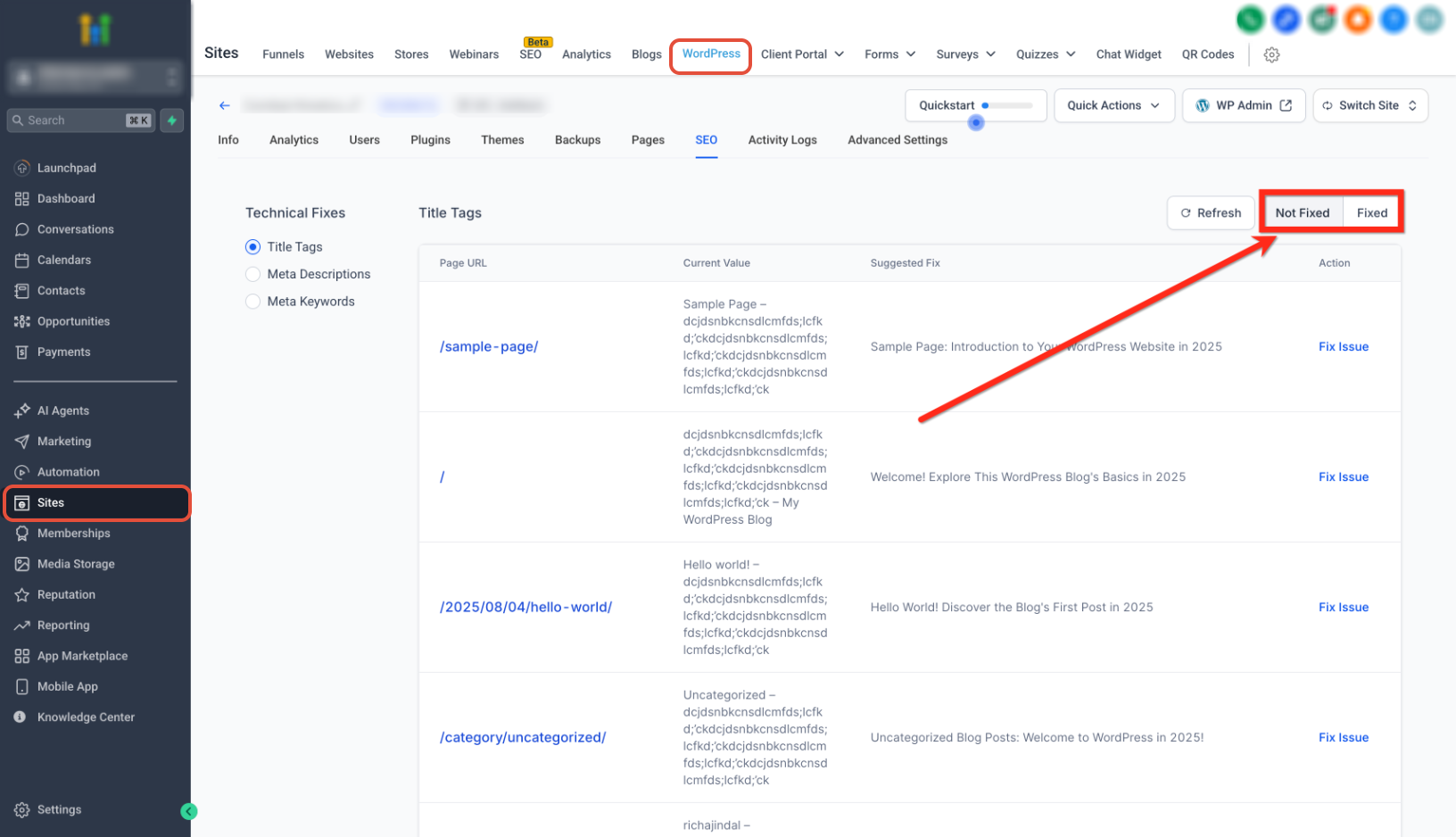
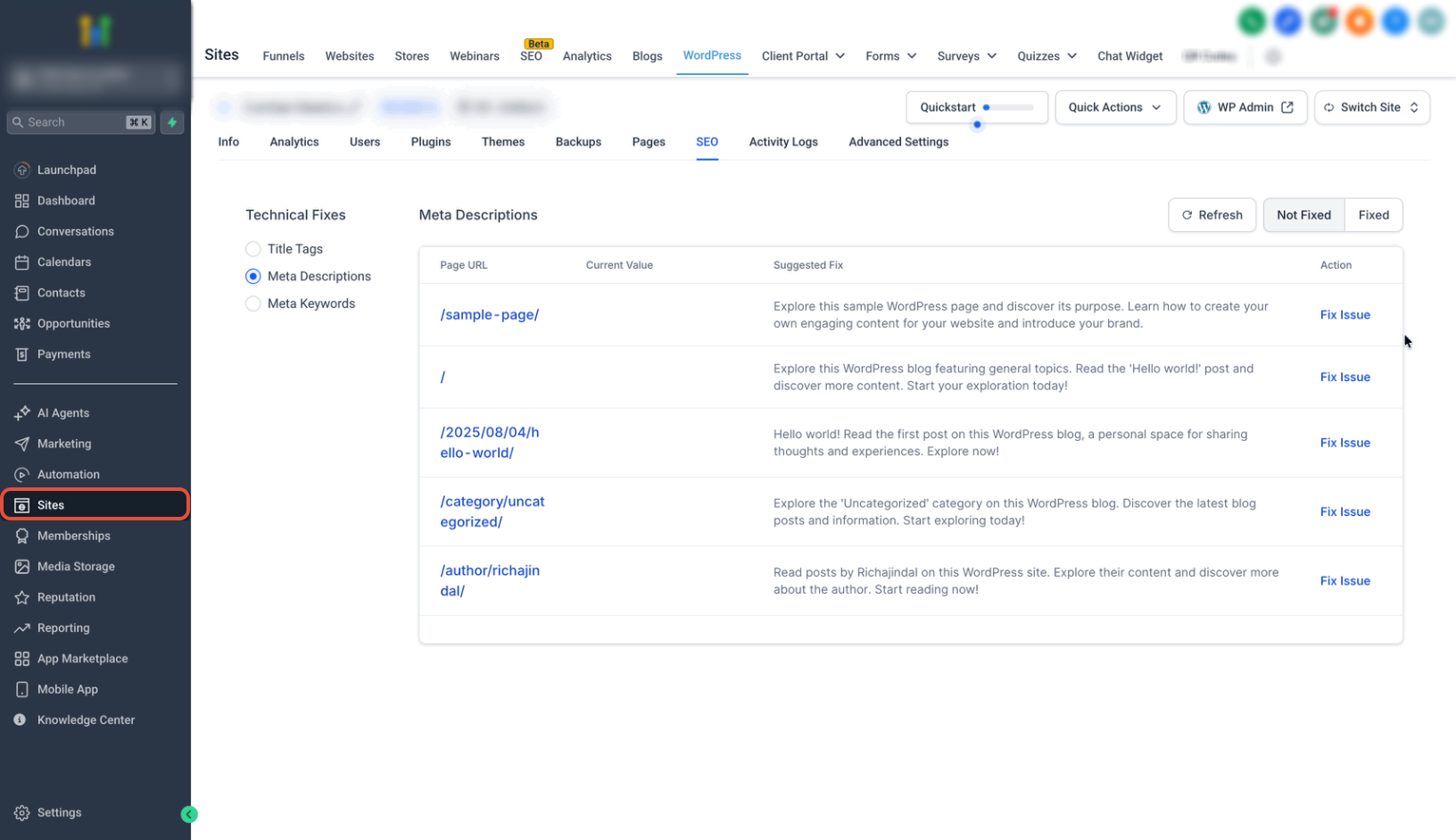
Open a fix category (for example: Title Tags or Meta Descriptions).
Review the Suggested Fix column.
Click Fix Issue to apply the update.
Use filters such as Not Fixed and Fixed to manage updates.
FAQ
Q: Do I need SEO Pixel if my website is hosted inside the platform?
No. Websites hosted inside the platform can receive SEO updates directly without installing the pixel.
Q: Will the SEO Pixel slow down my website?
The snippet is lightweight and designed to have minimal performance impact.
Q: What happens if I move my website to another account or workspace?
A new SEO Pixel snippet must be generated and installed for the new location.
Q: Can I undo a fix after it is applied?
Yes. You can manually update or override changes within your website editor.
Q: Why do I still see “SEO Pixel not detected” after installing it?
This may occur if:
The snippet was placed in the <head> instead of the <body>
The site was not republished
Caching/CDN is serving an old version
The snippet was altered or partially copied
Key Notes
The SEO Pixel snippet is unique per website.
It is generated inside the SEO tool.
The pixel only applies SEO-related changes (titles, meta descriptions, alt text).
It does not alter layout, structure, or design.
The snippet must not be modified.
Next Steps
Open the SEO tool.
If you see SEO Pixel not detected, click View Installation Steps.
Install the snippet on your website.
Return to the SEO tool and click Verify Installation.
Use Fix Issue to apply suggested SEO updates.
Need Help?
If SEO Pixel is not verifying or applying updates correctly:
Confirm the snippet is inside the <body> section.
Ensure your website is published.
Clear cache or CDN layers.
Re-copy the snippet from the SEO tool to avoid formatting issues.
Check browser console errors for blocked scripts.
If the issue persists, collect:
Your website URL
Screenshot of snippet placement
Screenshot of the SEO tool status
Then contact support for further assistance.